
Do Not Disturb Mode
Use Groundwire's Do Not Disturb (DND) mode to block notifications from calls and new messages. Users do not receive incoming calls but the rejected call logs are captured in the History tab.
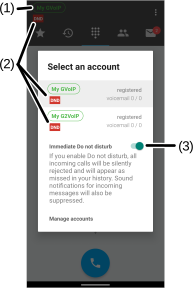
The SIP service icon on the Main screen displays a red DND label (2) when enabled.
Setting the DND Mode
Users can enable DND mode manually or schedule DND to activate automatically based on a set of schedule(s).
- Select the SIP service icon (1) on the Main screen, toggle the Do Not Disturb switch (3) to turn on or off manually.
- Customize specific conditions to turn on or off the DND mode automatically.
Setting Global Automatic DND Mode
Set DND rules to schedule DND activation automatically during specific times when you prefer not to receive notifications.
Global settings apply to the entire application and are suitable for the following scenarios:
- Single SIP account users
- Multiple account users who want to configure a single set of global rules that apply to all SIP accounts.
To set a global DND mode:
- To open the Do Not Disturb screen in Preferences:
- Android devices - On the Main screen, select
 > Settings > Preferences > Do Not Disturb.
 - iOS devices - Open the Keypad tab, select
 > Preferences > Do Not Disturb.
- Android devices - On the Main screen, select
- Select the + button.
- Select an available option for a DND rule:
- Enabled or Enable - Select to activate this custom rule.
- Time - Select to turn on at a custom time interval or all day.
- Weekdays - Select the day(s) to turn DND mode on.
- Unknown contacts - Select to apply this rule to unknown phone numbers.
- Contacts - Tap Add new to specify the contact(s) to which this rule applies. By default, this rule applies to all your contacts if none are specified.
- Comment - Add a description.
- Select Add.
The following video demonstrates how to set up the global DND feature to prevent calls from unknown caller on weekend.
Setting SIP Account-Specific Automatic DND Mode
The account-specific rules setting is for multiple SIP account users who want to configure rules for a specific account only.
To set DND mode for a specific SIP account:
- To open the Accounts screen:
- Android devices - On the Main screen, select > Settings > Accounts.
- iOS devices - Open the Keypad tab, select > Accounts.
- Android devices - On the Main screen, select
- Select the desired SIP account.
- Select Advanced Settings > Do not disturb.
- Select the + button.
- Select an available option for a DND rule:
- Enabled or Enable - Select to activate this custom rule.
- Time - Select to turn on at a custom time interval or all day.
- Weekdays - Select the day(s) to turn DND mode on.
- Unknown contacts - Select to apply this rule to unknown phone numbers.
- Contacts - Tap Add new to specify the contact(s) to which this rule applies. By default, this rule applies to all your contacts if none are specified.
- Comment - Add a description.
- Select Add.
- Select Back.
- Select
 or Done to save the setting.
The following video demonstrates how to set up a DND feature to prevent calls from unknown callers during the night for a specific SIP account.
Deleting a DND Rule
To delete a DND rule on the Do Not Disturb screen:
- Android devices - Touch and slide the rule to the right.
- iOS devices - Touch and slide the rule to the left.
Was this guide helpful?