
Using Groundwire
Accessing Call History
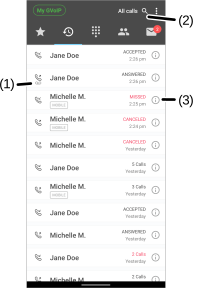
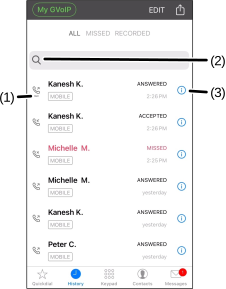
The History tab records all the call logs from most recent to earliest. The call logs display the contact name or phone number, the call type, and the time of the call.
Using the Call Log
-
The number in the red dot on the History tab indicates the number of missed calls.
-
Tap on the call logs to make calls.
-
Review the call recording. The Recording
 (1) icon denotes the call log has recording(s).
 -
Touch the Information
 (3) icon to view the details of the call.
 -
Touch
 (2) to filter a call from a contact.
 -
Additional options: === "Android"
- Tap All calls (4) to filter calls based on the call type:
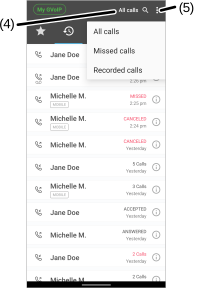
- All calls - Restores displaying all the calls.
- Missed calls - Displays missed calls only.
- Recording calls - Displays recorded calls only.
- To delete call logs, select
 (5):
(5): - Clear call history - Deletes call logs.
- Edit mode - Deletes selected call log(s).
- To filter calls based on the call type (4):
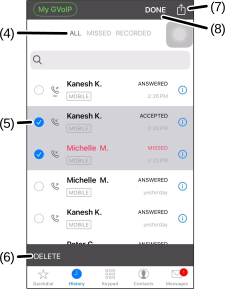
- ALL - Restores displaying all the calls.
- MISSED - Displays missed calls only.
- RECORDED - Displays recorded calls only.
- To delete call logs, select EDIT:
- DELETE ALL - Deletes call logs.
- To deleted selected call log(s), select a call log entry or more, and then select DELETE (6) > DONE (8).
- Select
 (7) to export the call logs to a CSV document.
The user can then send it to other users or save it on the mobile device.
(7) to export the call logs to a CSV document.
The user can then send it to other users or save it on the mobile device.
- Tap All calls (4) to filter calls based on the call type:
Was this guide helpful?