
Using Groundwire
Managing Contacts
Open the Contacts tab to access all the contacts in the phone.
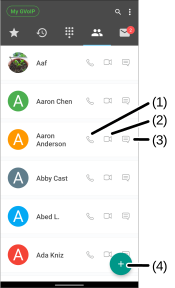
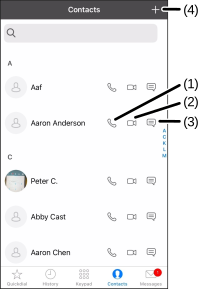
- Touch the Add + (4) icon to add new contacts.
- Touch the following icons beside the name of the contact:
- Call
 (1) - Makes an audio call.
 - Video
 (2) - Makes a video call.
 - Messages
 (3) - Sends messages.
- Call
Editing Contacts
Users can update information to existing contacts and delete contacts in the address book.
- To edit a contact's information:
- Open the Contacts tab, and then select the contact that needs updates.
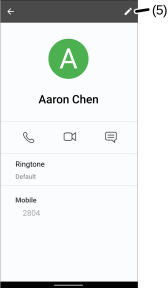
- Select the Edit
 (5) icon.
 - Make changes and then select Save.
- To delete a contact:
- Open the Contacts tab, and then select the contact.
- Select Edit (5) >
 > Delete .
- To edit a contact's information:
- Open the Contacts tab, and then select the contact that needs updates.
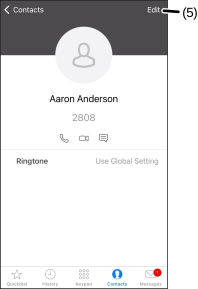
- Select Edit (5) > EDIT.
- Make changes and then select DONE.
- To delete a contact, open the Phone application on your device and remove it.
Was this guide helpful?