
Using Groundwire
Saving New Contacts
Add new contacts to the address book so that you can look them up in the Contacts tab.
Adding Contacts
You can add new contacts in several ways:
-
To manually save a new phone number:
- In the Contacts tab, select the + (1) icon and then follow the instructions on the screen.


- In the Keypad tab, dial the phone number using the dialer, tap Add to Contacts, and then follow the instructions on the screen.

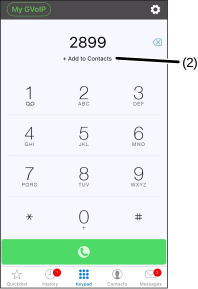
- In the Contacts tab, select the + (1) icon and then follow the instructions on the screen.
-
To save a new phone number in the Message or History tab: === "Android"
- In the Message tab:
- Select the conversation.
- Select
 > People & Options.
 - Tap the number under People in this conversation.
- Select
 (3).
(3). 
- Follow the instructions on the screen to save the new number.
- In the History tab:
- Select the
 icon beside the new phone number.
 - Select (4).
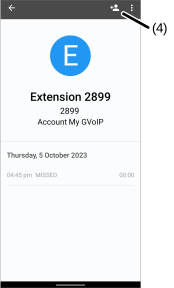
- Follow the instructions on the screen to save the new number.
- In the Message tab:
- Select the conversation.
- Select (3) > Add to Contacts (4).
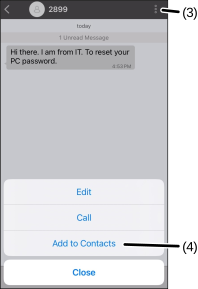
- Select Create New Contact or Add to Existing Contact.
- Follow the instructions on the screen to save the new number.
- In the History tab:
- Select the icon beside the new phone number.
- Select the + (5) button.
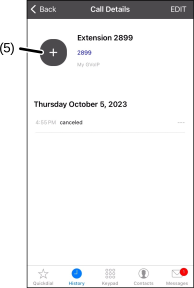
- Select Create New Contact or Add to Existing Contact.
- Follow the instructions on the screen to save the new number.
Was this guide helpful?