
Using Groundwire
Sending Media Files
The users can send media files such as documents, photos, videos, and audio files using the Groundwire messaging feature.
Attaching Media Files
- Open the conversation in the Messages tab.
To begin a new conversation with a contact, go to the Sending Messages section for more information.
- Select the Attachment
 (1) icon.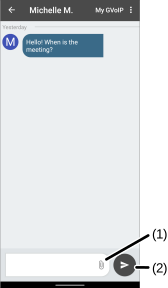
- Select a media file option:
- Voice - Record an audio message and attach it. See the Sending Audio Messages section for the details.
- Document - Select a document on the mobile device.
- Camera - Take a photo or record a video with the mobile device to send it with a message. See the Sending Photos and Videos section for the details.
- Gallery - Select an existing photo or video on the mobile device.
- Navigate to the location to open the media folder on the device. Tap and hold to select more files.
- (Optional) Enter a text message if needed.
- Select the Send (2) button.
- Open the conversation in the Messages tab.
To begin a new conversation with a contact, go to the Sending Messages section for more information.
- Select the Attachment
 (1) icon.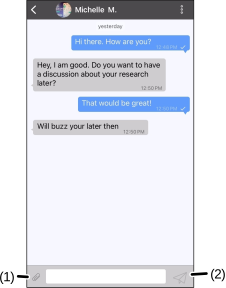
- Select a media file option:
- Image from Camera - Take a photo or record a video with the mobile device to send it with a message. See the Taking Photos and Videos section for the details.
- Image from Photo Library - Select an existing photo or video on the mobile device.
- Pick a Document - Select a document on the mobile device.
- Record Voice Message - Record an audio message and attach it. See the Sending Audio Messages section for the details.
- Navigate to the location to open the media folder on the device. Tap and hold to select more files.
- (Optional) Enter a text message if needed.
- Select the Send (2) button.
Was this guide helpful?