
Using Groundwire
Taking Photos and Videos
Take photos or record videos using the device camera, and then send them to your contacts.
Capturing and Sending Photos or Videos
- Select the Attachment
 icon.
icon. - Open a conversation, select Attachment
 > Camera
  . The Camera application opens.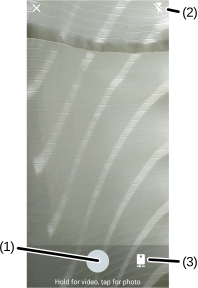
- Select the Camera (3) icon to switch between the rear camera
 and the front camera
  (if available).
 - If necessary, select the Flash (2) icon to select a flash mode:
 - Disables flash.
 - Adjusts flash automatically depending upon the brightness.
 - Enables flash upon taking a photo.
- Point the camera at the subject.
- To take a photo or to record a video:
- Select the Shutter (1) button to take a photo.
- To record a video, touch and hold the Shutter (1) button. The button turns red and the timer displays beside it. Release the finger from the button once completed.
- Select Retake, Use Photo/Video, or Discard after reviewing photos or videos.
- To take a photo:
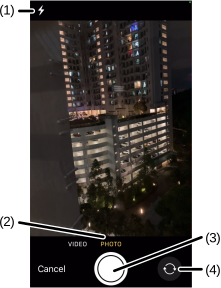
- Open a conversation, select Attachment icon > Image from Camera. The Camera application opens. Ensure PHOTO (2) is selected.
- Tap the Switch
 (4) icon to switch between the rear and front cameras (if available).
 - If necessary, select the Flash (1) icon to select a flash mode:
- Auto - Adjusts flash automatically depending upon the brightness.
- On - Enables flash upon taking a photo.
- Off - Disables flash.
- Point the camera at the subject
- Select the Shutter (3) button to take a photo.
- Select Retake or Use Photo after reviewing the video.
- To record a video:
- Open a conversation, select Attachment icon > Image from Camera. The Camera application opens.
- Tap VIDEO (2) to open video mode.
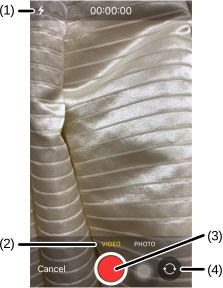
- Tap the Switch (4) icon to switch between the rear and front cameras (if available).
- If necessary, select the Flash (1) icon to select a flash mode:
- Auto - Adjusts flash automatically depending upon the brightness.
- On - Enables flash upon taking a photo.
- Off - Disables flash.
- Point the camera at the subject.
- Select the Shutter
 (3) button to start recording.
 - Select the Stop Record
 button.
 - Select Retake or Use Video after reviewing the video.
Was this guide helpful?