
Application Initial Setup
Acrobits Softphone requires a SIP account and the device's system permissions to function properly.
Granting Application Permissions
All the permissions can be configured in the device settings or application settings. Read the Personal Data Protection, and then select the I AGREE button.
For iOS, the permission requests appear only when needed.
For Android, users should grant at least the Microphone and Phone permissions.
- Select Softphone from the app list on the device.
When the app is opened for the first time, it asks the user's permission to use the hardware features on the device.
- Select the GRANT or Allow button on the permission request dialog box for the following applications:
The access control on these applications may vary between Android and iOS.
Microphone
-
Phone
-
Contact
-
Ignore battery optimization
-
Do not disturb
-
Camera
-
Location
-
Internet network
-
Record audio
-
Notification
-
Document storage
-
Fullscreen incoming calls.
This Fullscreen incoming calls permission determines how notifications display when the application receives incoming calls.
-
Open Android tab in the Answering or Declining Calls section to view the example screenshots of incoming call displayed in full screen and in a small dialog box.
-
To change this setting, go to Setting Fullscreen Incoming Calls section.
Adding a SIP Account
Acquire a SIP account from a service provider of your choice and then log in to begin using Acrobits Softphone. You can add multiple SIP accounts (if have) later. Acrobits Softphone should at least have one account to work.
Go to the SIP Account section for more information about managing your accounts.
- On the Main screen:
Android devices - Select  > Settings > Accounts.
-
iOS devices - Select
 > SIP Accounts.
 -
On the Accounts screen, select the + icon.
-
Select the name of your SIP provider. If it is not on the list, select the New SIP Account option.
-
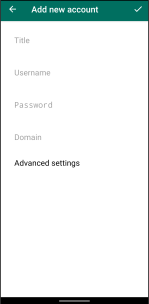
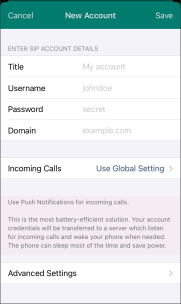
Enter a title, your username, password, SIP domain in the text fields.
-
Title - This is displayed as the SIP Service icon on the application Main screen. This setting helps users with multiple SIP accounts to identify the account being used. Single SIP account users can enter any text here.
-
Domain - To learn more, visit doc.acrobits.net/cloudsoftphone/account.html#host.
-
To configure more settings like SIP transport, follow the instructions in the Configuring Account Settings section to open the Advanced Settings of that account.
-
Select
 or Done to save the setting.
 -
Select Back several times to return to the Main screen.
Monitoring the SIP Service Icon
After entering the SIP account credential in the account settings, the SIP Service icon at the top left corner should appear in green.
The indications of the icon color are as follows:
| Icon | Description |
|---|---|
| Green | The SIP account is registered. |
| Red | The account is not registered yet. Check your internet connection or contact your service provider to get assistance. |
(Android Devices only) Selecting a Device Type
Select whether you are using a tablet or a phone device. This setting affects Acrobits Softphone's behavior.
-
Select
> Settings > Preferences. -
Under Other, select Device type.
-
Select Tablet or Phone.
If Tablet is selected, enable (default) or disable Automatic speaker in call as required.
Was this guide helpful?