
Resetting the Application
Backing up and restoring may be needed for purposes such as troubleshooting, replacing devices, and ensuring security. Users can back up Acrobits Softphone configurations and restore them later without the need for manual reconfiguration.
Backing Up and Restoring
To back up the settings:
-
On the Main screen, select
 > Settings > Preferences.
 -
Select Backup configuration.
-
Enter a configuration name in the Backup file name field.
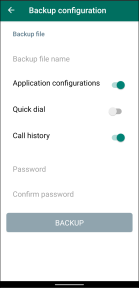
- Enable or disable the following options as needed:
Application configurations - Saves the current Acrobits Softphone settings.
-
Quick dial - Saves the contacts added in the Quickdial tab.
-
Call history - Saves all the call logs recorded in the History tab.
-
Enter a password in the Password field.
-
Enter the password again in the Confirm password field.
-
Select the Backup button.
-
Select an app to send the backup file.
To restore settings:
-
On the Main screen, select
> Settings > Preferences. -
Select Restore configurations.
-
Select the Restore file path, and then navigate to the location of the configuration file on the device.
-
Select the desired configuration file.
-
Select OK in the confirmation dialogue box.
To back up the settings:
-
Open the Keypad tab, select
 > Preferences.
 -
Select Backup configuration.
-
Enter a configuration name in the Backup file name field.
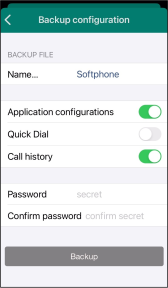
- Enable or disable the following options as needed:
Application configurations - Saves the current Acrobits Softphone settings.
-
Quick dial - Saves the contacts added in the Quickdial tab.
-
Call history - Saves all the call logs recorded in the History tab.
-
Enter a password in the Password field.
-
Enter the password again in the Confirm password field.
-
Select the Backup button.
-
Select an app to send the backup file.
To restore the settings:
-
Open the Keypad tab, select
> Preferences. -
Select Restore configuration.
-
Select the desired configuration file.
-
Select YES in the confirmation dialogue box.
Was this guide helpful?