
Main Screen
By default, Acrobits Softphone opens to the Keypad tab.
Screen Layout
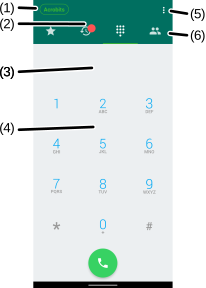
(1)
Registration status - The color of the SIP Service icon indicates the account registration status. See the Monitoring the SIP Service Icon section for more information.
(2) Tab notification dot - Keeps track of unread messages or missed calls.
(3) Dialer input field - Displays the dialed number.
(4) Dialer keypad - Press to make a call.
(5) Settings button - Opens Settings to configure Acrobits Softphone settings.
(6)
Tab button - Tap to switch between application tabs:
-
 - Saves quick dials for the contacts frequently calling.
 -
 - Displays the call history.
 -
 - Use the dialer to call new phone numbers.
 -
 - Displays the contact directory.
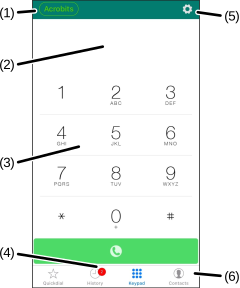
(1)
Registration status - The color of the SIP Service icon indicates the account registration status. See the Monitoring the SIP Service Icon section for more information.
(2) Dialer input field - Displays the dialed number.
(3) Dialer keypad - Press to make a call.
(4) Tab notification dot - Keeps track of unread messages or missed calls.
(5) Settings button - Opens Settings to configure Acrobits Softphone settings.
(6) Tab button - Tap to switch between application tabs.
Was this guide helpful?