
Managing Call Recordings
Some countries impose laws and regulations on recording calls. We recommend that the users get consent from the call participants before recording the call.
Go to the Call Recording Options section to learn about call recording settings.
Retrieving Recordings
Once the calls are recorded, the users can retrieve them in the History tab.
-
Select the History tab.
-
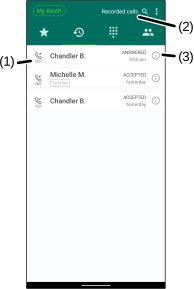
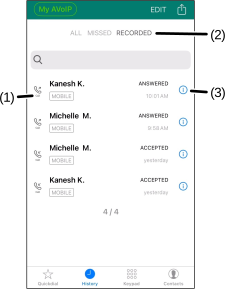
(Optional) Select Recorded calls (Android devices) or RECORDED (iOS devices) (2) to sort calls with a recording.
The Recording  icon (1) denotes the call log has recording(s).
-
Select the Information
 (3) icon beside the name or phone number you want to retrieve the recording.
 -
Select the Play Record
 (4) icon to listen to the recording.
Managing Individual Recordings
Select the More Settings  (5) icon on that recording entry.
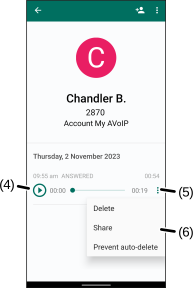
A list of recording settings (6) displays:
-
Delete - Deletes the recording.
-
**Share ** - Sends the recording to someone else.
-
Prevent auto-delete - Locks the recording from being deleted by the auto-delete duration setting.
When enabled, a lock (7) displays on the entry which indicates it is excluded from being deleted.
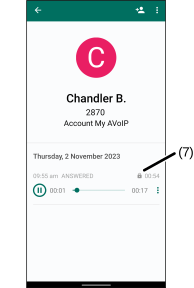
To unlock the recording, select More Settings (5) > Enable auto-delete.
Select the Information (5) icon on that recording entry.
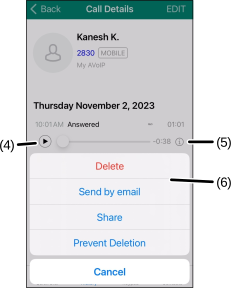
A list of recording settings (6) displays:
-
Delete - Deletes the recording.
-
Send by email - Sends the recording to someone else using email.
-
Share - Sends the recording to someone else using other applications.
-
Prevent Deletion - Locks the recording from being deleted by the auto-delete duration setting.
When enabled, a lock (7) displays on the entry which indicates it is excluded from being deleted.
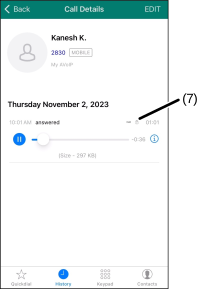
To unlock the recording, select Information (5) > Allow Deletion.
Was this guide helpful?