
Sending Messages
Use the messaging feature to send instant messages to others instead of calling them.
- This section applies to SIP account that supports the SIMPLE protocol. Users can use instant messaging with Acrobits Softphone, but the features and services are provided by the SIP service provider.
The messaging function is disabled by default. To enable it, see the Enabling Messaging section.
- Different SIP service providers may have different dialing requirements on the format of the phone number, such as prefixes like +countrycodenumber, 00countrycodenumber, countrycodenumber, or simply the local number.
Check with your service provider about the format, then use the Number Rewriting feature to reformat your existing contact lists to match the preferred format.
See the Number Rewriting section to use this feature.
Sending to a New Phone Number
You can send messages using Acrobits Softphone in several ways:
- To a new phone number:
-
Select the Keypad tab.
-
Dial the phone number in the dialer.
Include the country codes when dialing the numbers. For example, use +1 when calling someone from North America.
-
Select and hold the Call
 button until you see a list of options.
 -
Select Message or Send a Message.
Sending to an Existing Contact
- To a contact in the Messages tab:
- Search and select the contact name (1).
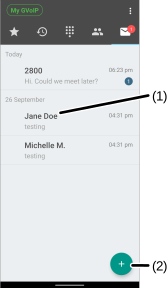
- If it is not found, select the + (2) button, and then select the contact to start a conversation.
- Search and select the contact name (2).
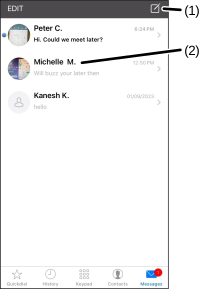
- If it is not found, select
 (1) >
(1) >  , and then select the contact number to start a conversation.
- To a contact in the Contacts tab:
-
Search for the contact name.
-
Select the Message
 button.
- To a contact in the Quickdial or History tabs:
-
Select one of these tabs.
-
Search for the contact name.
-
Select and hold the name until you see a list of options.
-
Select Message or Send a Message.
After composing the message, select the Send button.
Was this guide helpful?